Study Design and Research
Screen |
Route |
Purpose |
Key Actions |
|---|---|---|---|
PICO Intro |
|
Introduces the PICO (Population/Intervention/Comparison/Outcome) research-question builder |
Start |
PICO Builder |
|
Guided research-question builder |
Save & Continue / Next Step |
Study Design Intro |
|
Introduces study-design selection |
Start |
Study Design Selection |
|
Choose a study design from the built-in catalog |
Select a design card |
Custom Question |
|
Enter a custom research question outside the catalog |
— |
Conferences |
|
Link the project to a conference submission target |
Browse/select a conference from the catalog |
PICO Builder (populated)
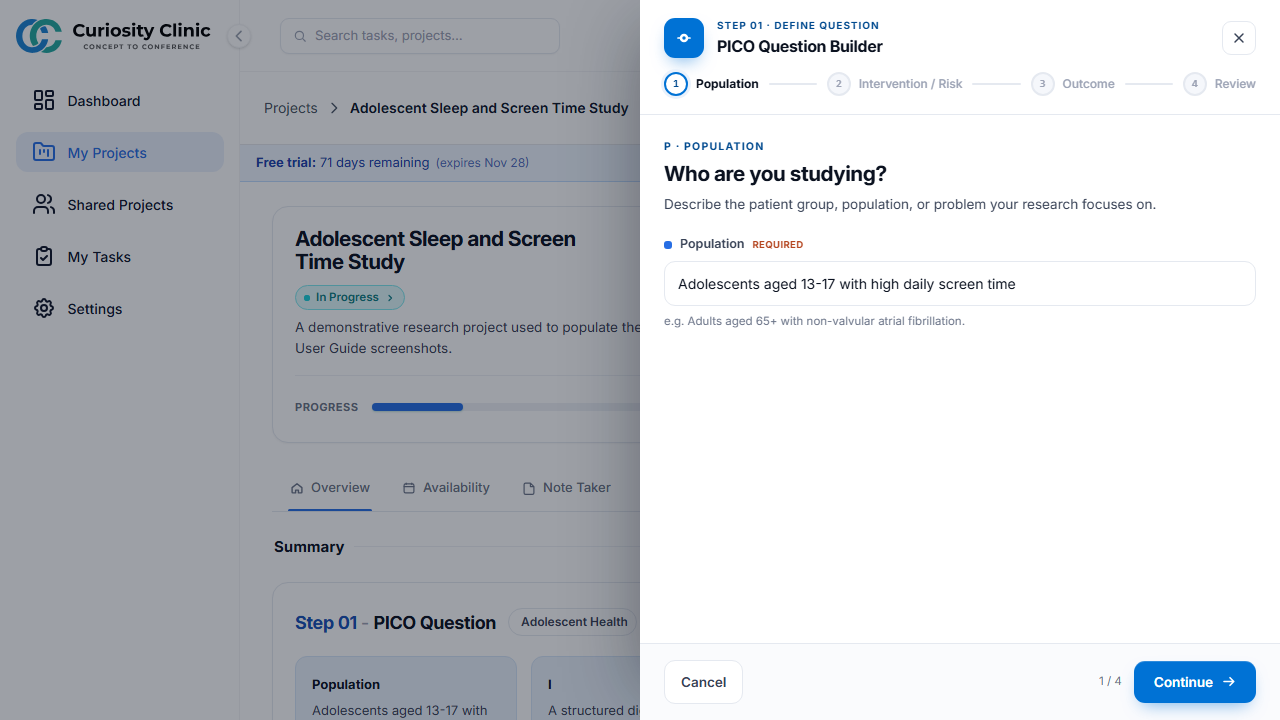
The PICO Builder is a guided, four-step form: Population, Intervention/Risk, Outcome, and a final Review step.
Choosing a Research Category
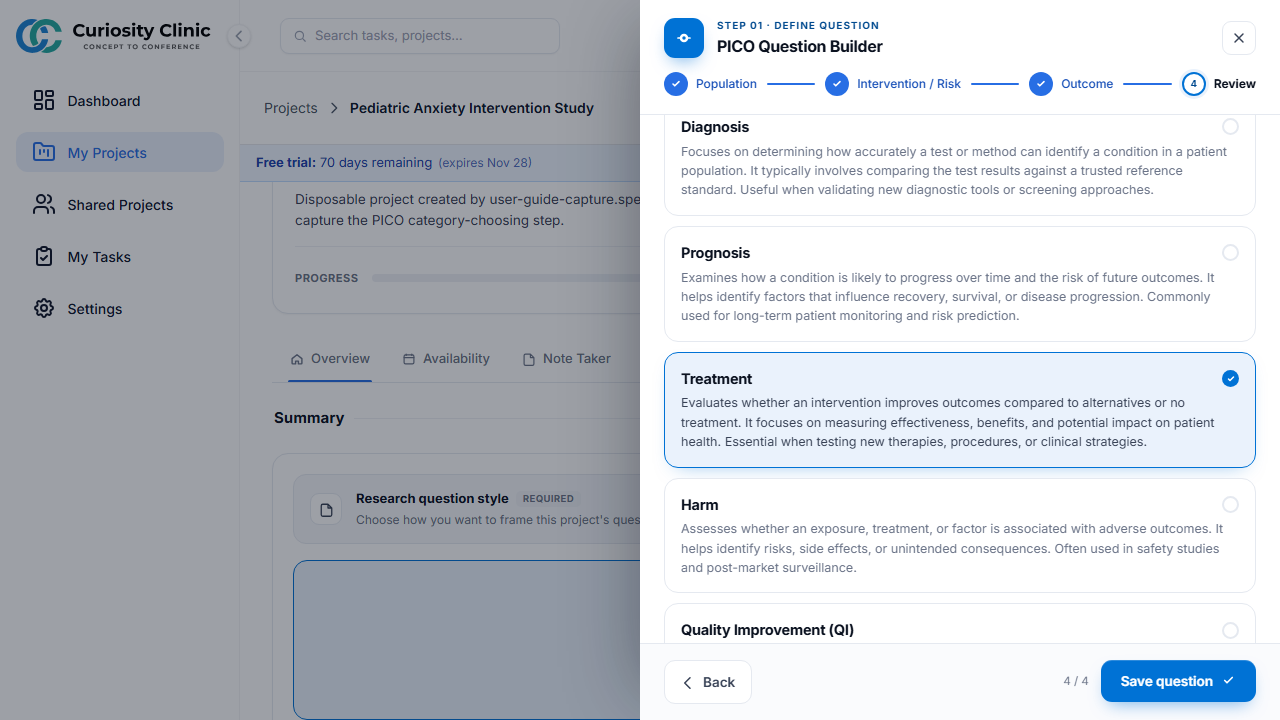
On the Review step of the PICO Builder, choose a research category — Diagnosis, Prognosis, Treatment, Harm, or Quality Improvement (QI) — that best matches your research question. This choice also determines which study designs are recommended in the next step. Once you select Save question, the category is locked and cannot be changed for that research question.
Custom Question
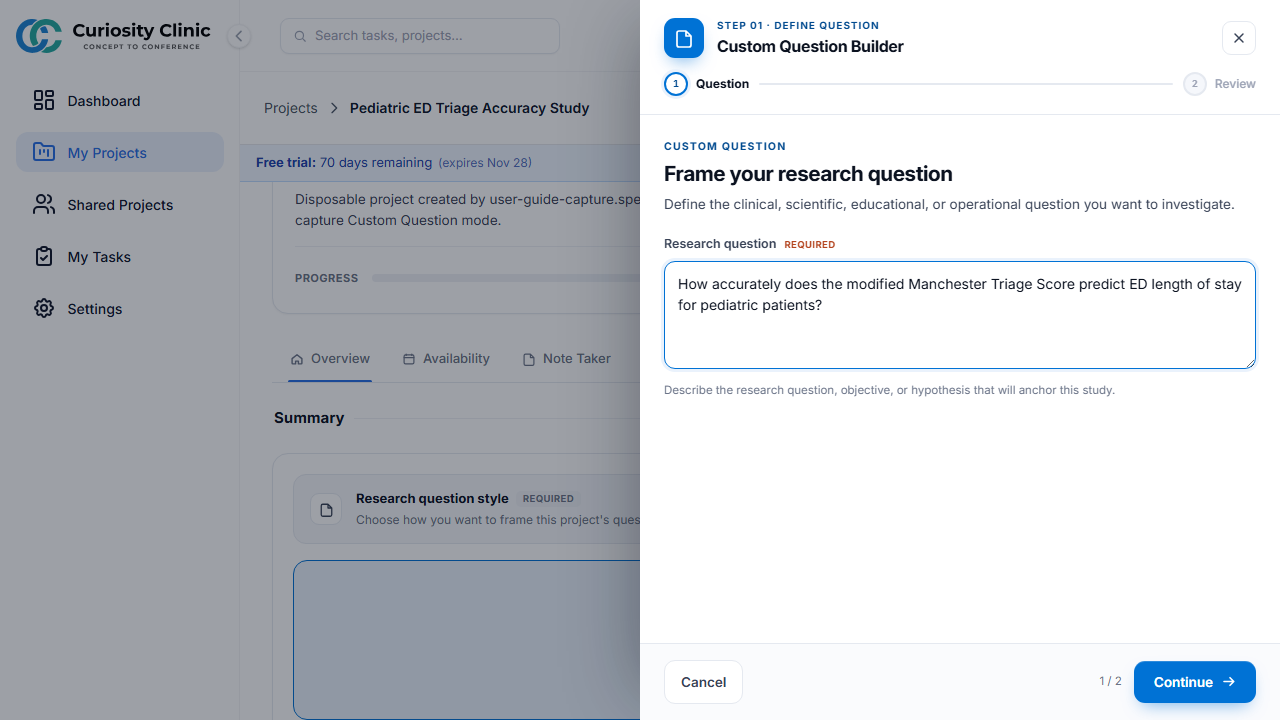
Instead of the guided PICO framework, you can choose Custom on the Overview tab’s “Research question style” selector to write your research question freely in your own words, then assign it a category the same way as above.
Study Design Selection
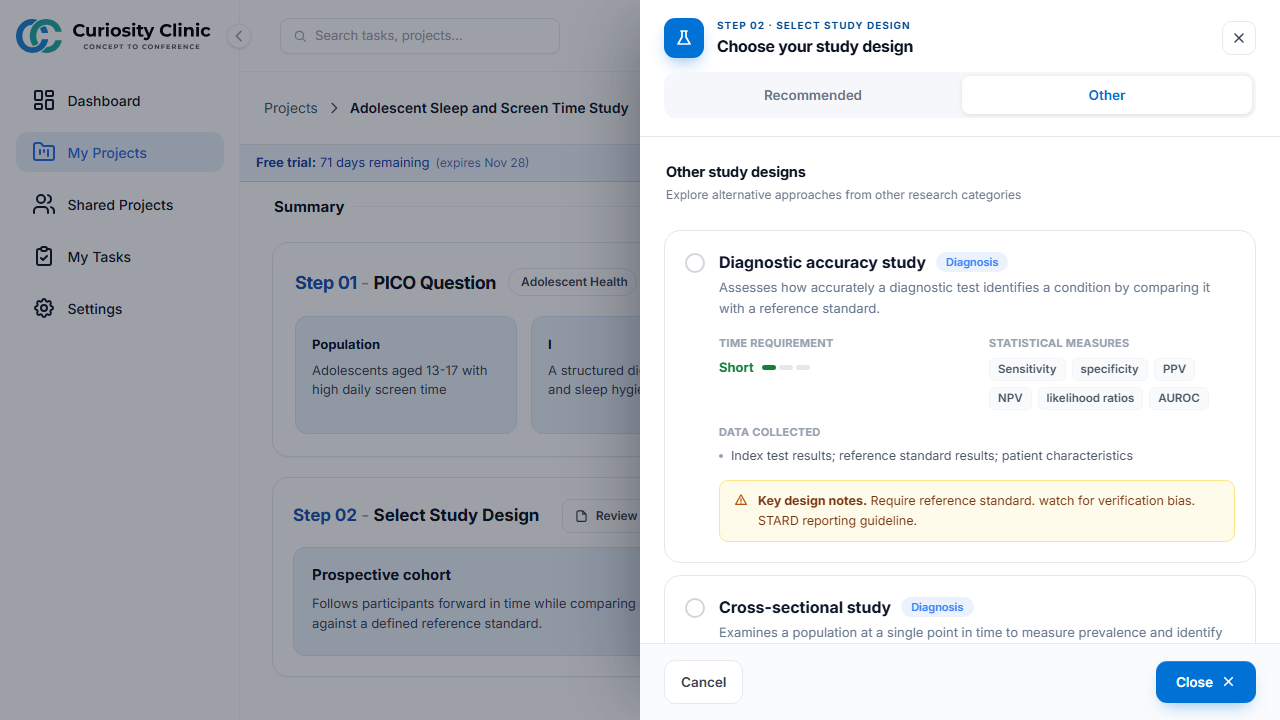
Study designs are grouped into Recommended (matched to your research category) and Other (all designs across every category) tabs. Each design card shows its time requirement, the statistical measures it produces, what data it collects, and key design notes.
Select Target Conference
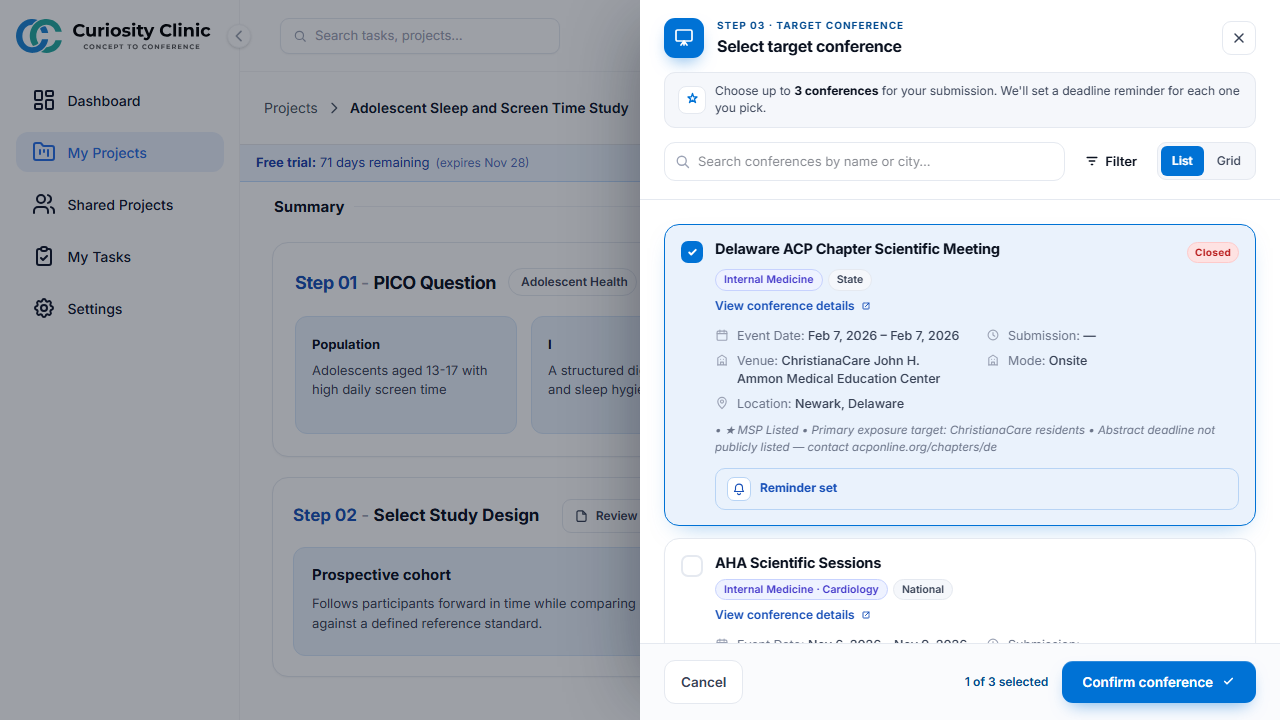
Choose up to 3 conferences as submission targets. Search by name or city, sort by upcoming date or name, and switch between grid and list views. A selected conference is marked with a checkmark and a blue border; select Confirm conference to save your choices.
A project is not “submission-ready” until its research configuration (research question, study design) is complete. See Workflows for the full research setup sequence.