Getting Started
The Core Journey
A new user opens the public Landing Page (
/) or Pricing page (/pricing), or arrives via an emailed invitation link.They register (
/register) — a three-step in-page wizard (choose account type → complete the profile/organization form → verify a 6-digit one-time code emailed to them) — or log in (/login) if they already have an account.A newly registered account is routed through Onboarding (
/onboarding,/onboarding/organization) until organization setup is complete; an Institution-type account is additionally routed through Institution Setup (/institution/setup).Once onboarded, the user lands on the Dashboard (
/dashboard) — the authenticated hub — and from there reaches Projects, My Tasks, Notifications, Search, Settings, and Billing.Inside a project, the user progresses through the research setup journey shown on the project’s Overview tab: define the research question (PICO), select a study design, and, optionally, link a conference submission target.
The Owner (or an Admin) invites collaborators by email; an invited person registers or logs in and accepts the invite to join the project with an assigned role (Admin, Member, or Guest).
The team executes the project through My Tasks (the task surface, with List, Board, Timeline, and Calendar views, scoped to one project at a time or opened across all projects from the Dashboard), and the project’s own Note Taker, Timeline (activity feed), Availability, and Leaderboard tabs.
The user manages their account through Settings (profile, organization, team, privacy, audit log, subscription) and Billing, and can raise a support ticket at any time from within the app.
The user logs out, ending the session.
Public and Entry Screens
Screen |
Route |
Purpose |
|---|---|---|
Landing Page |
|
Public marketing homepage; default unauthenticated entry point |
Pricing Page |
|
Public plan and pricing comparison |
Login |
|
Email + password sign-in |
Register |
|
Account creation wizard (account type → form → OTP) |
Forgot Password |
|
Request a password-reset email |
Terms and Conditions |
|
Legal terms (Refund Policy at |
Privacy Policy |
|
Legal privacy policy |
Landing Page
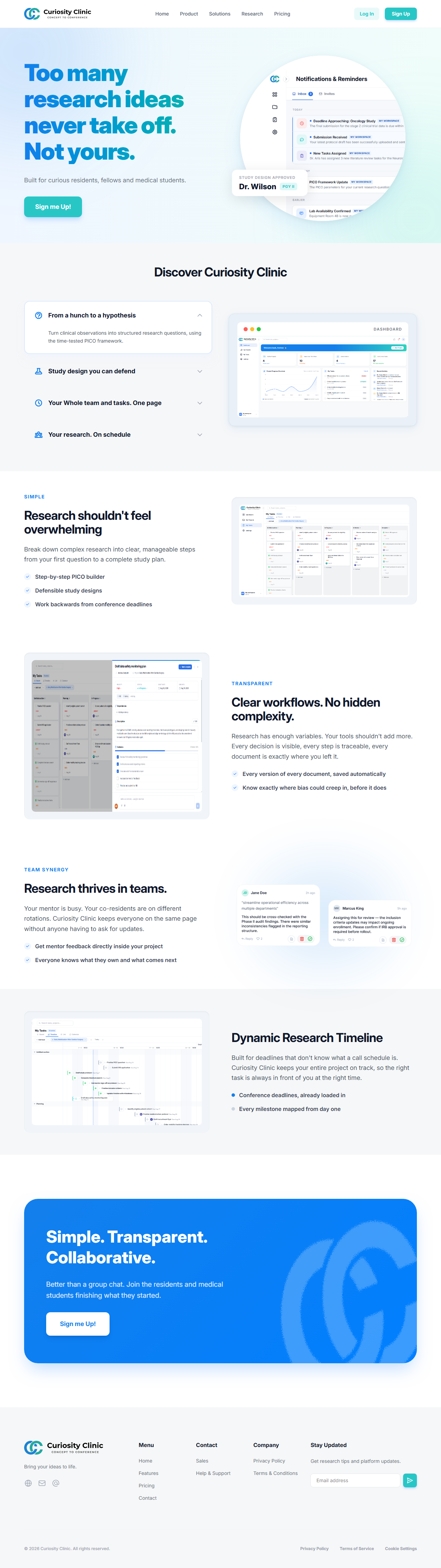 The public marketing homepage at
 /, the default page for an unauthenticated visitor.
Login
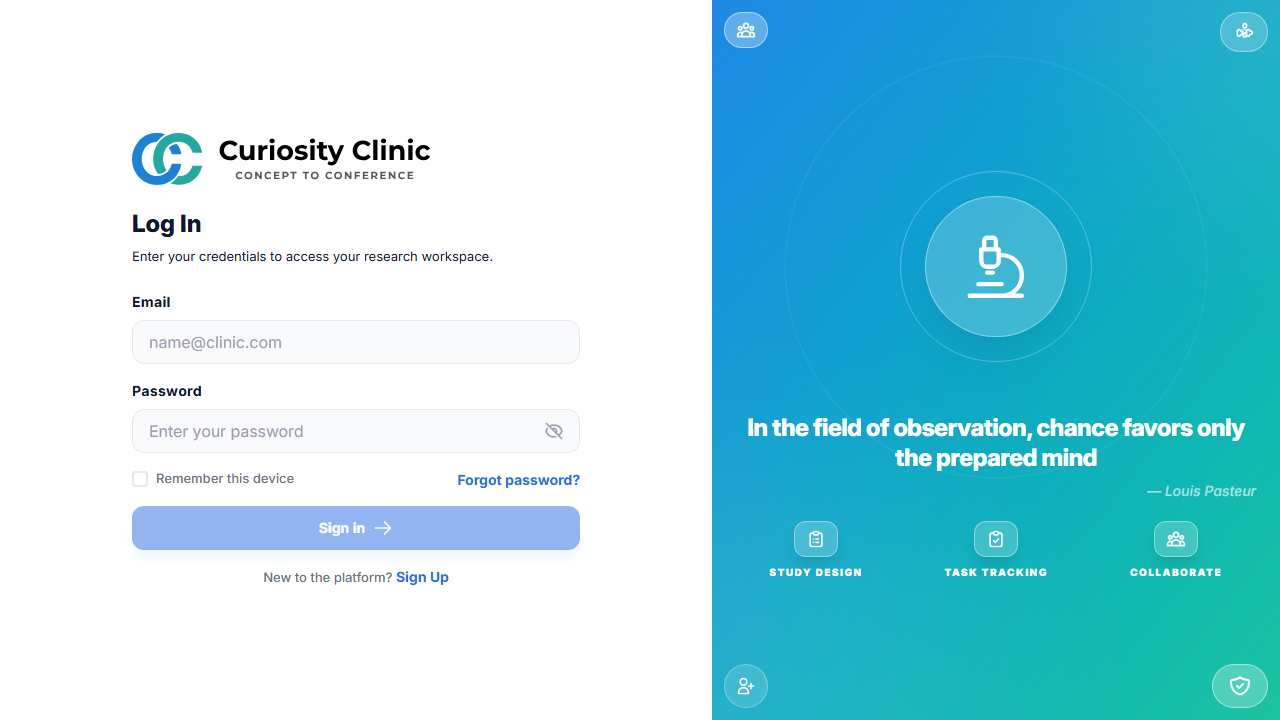 Email and password sign-in. Login failures return a uniform error message regardless of whether the email is unrecognized or the password is wrong, and the account locks out after repeated failed attempts.
Register
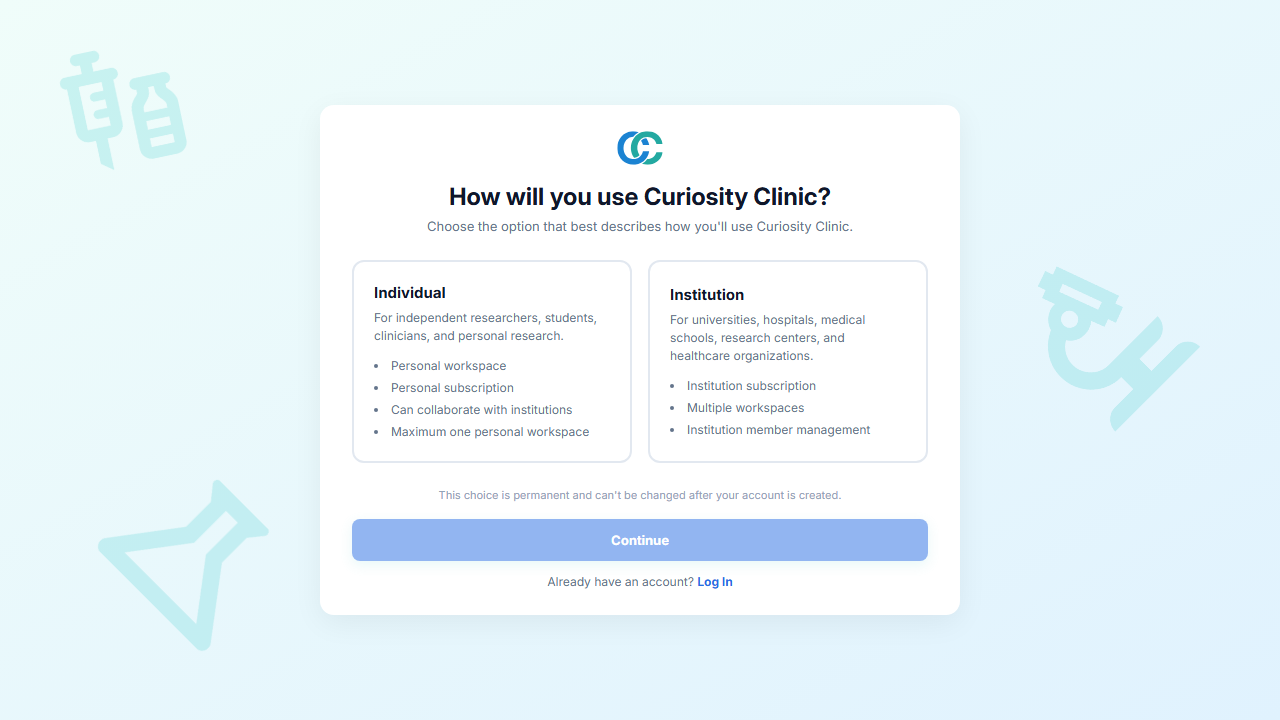 Step one of registration: choosing an account type (Individual or Institution). The form step that follows collects first/last name, email, password, phone, date of birth, and a US mailing address; the final step is a 6-digit one-time code sent to the registrant’s email, with a 30-second resend cooldown.
Forgot Password
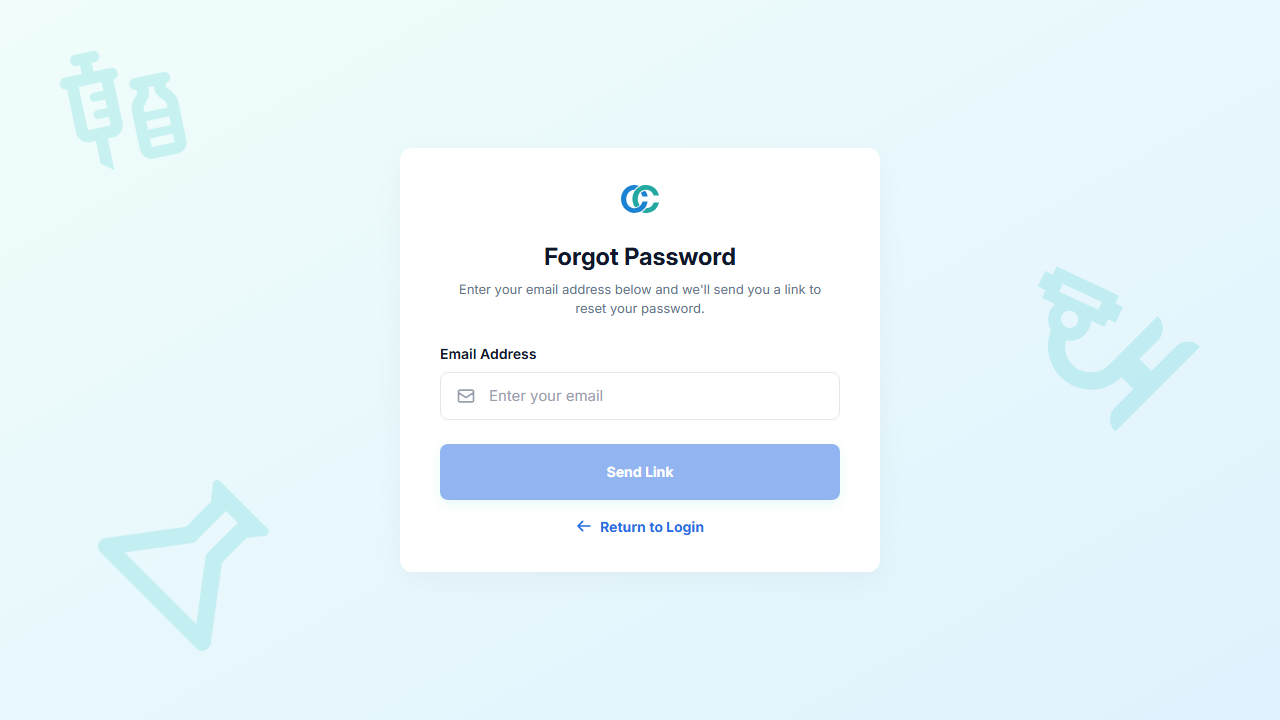 Requests a password-reset email. The follow-on Reset Password screen requires a link from that email.
Authentication and Onboarding Screens
Screen |
Route |
Purpose |
Available Actions |
Notes |
|---|---|---|---|---|
Login |
|
Sign in |
Enter email/password, select Sign in; link to Sign Up |
Uniform error on bad credentials; account lockout after repeated failures |
Register |
|
Create an account |
Choose account type; complete profile form; enter emailed 6-digit code; Resend (30s cooldown) |
Institution-type registrants skip straight to the profile form; invited signups always register as Individual |
Forgot Password |
|
Request a reset email |
Enter email, submit |
— |
Reset Password |
|
Set a new password from an emailed link |
Enter new password twice; Back to Log In / Proceed to Log In |
Requires a genuine emailed link |
Verify Email |
|
Confirm an email address via link |
Automatic on load; Sign in on success |
A secondary path to the primary in-wizard OTP verification |
Activate Account |
|
Set an initial password (invited users) |
Set password; Back to Sign In if already logged in |
Used when joining via an invitation |
Accept Invite / Invite Mismatch |
|
Join a project/institution from an emailed invite |
Accept; if logged in as the wrong account, see mismatch guidance |
Requires a genuine invite link |
Onboarding |
|
First-run setup: organization name, academic role |
Complete each step |
— |
See Workflows for the full registration and invite-acceptance sequences.