Dashboard and Core Navigation
Dashboard
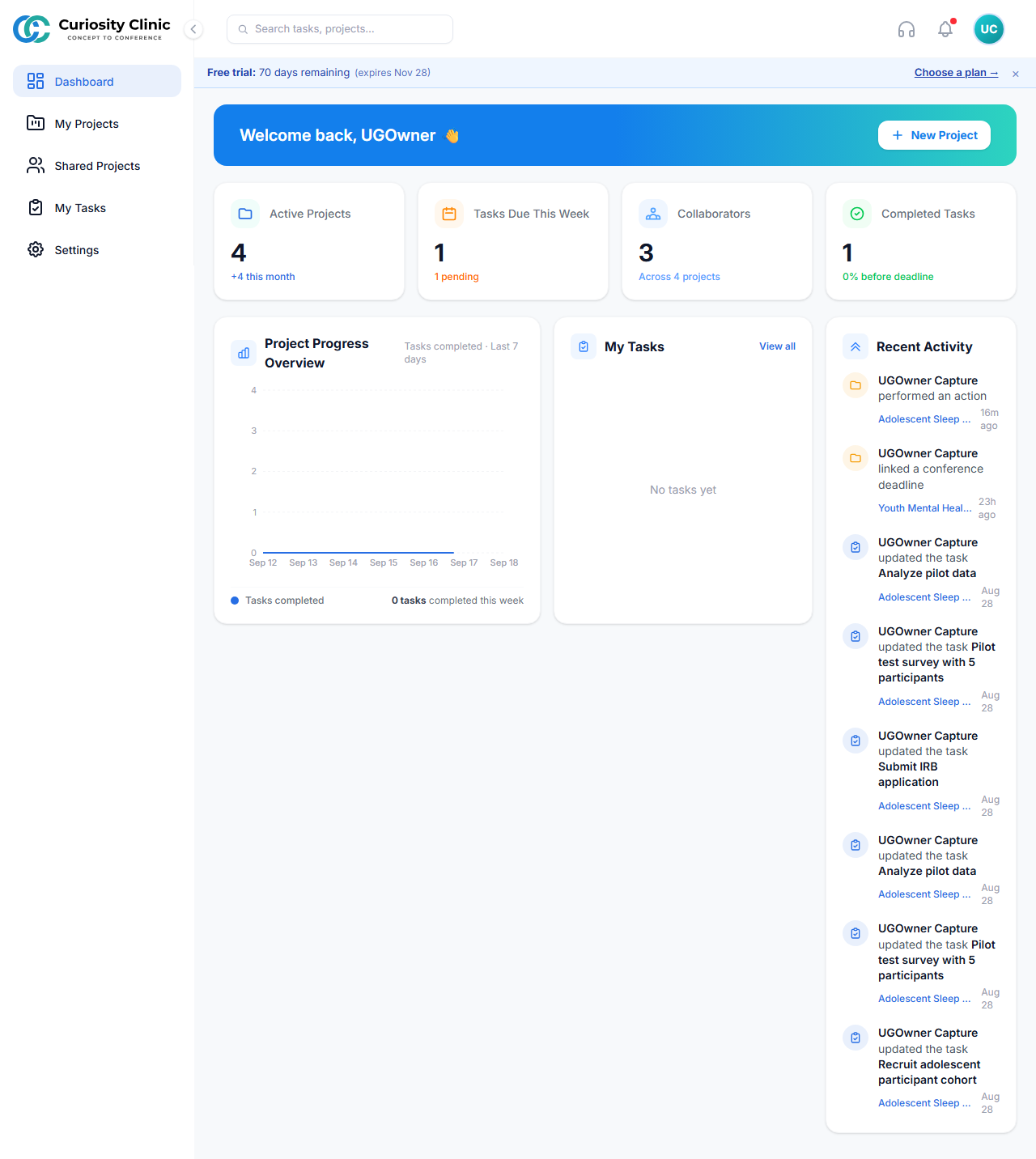
Purpose: the authenticated landing page. How to access: automatic after login, or the Dashboard sidebar item. Available actions: + New Project; stat cards for Active Projects, Tasks Due This Week, Collaborators, and Completed Tasks; a Project Progress chart; a My Tasks panel; a Recent Activity feed. Notes: an active free-trial banner (“Free trial ending soon: N days remaining”) with a Choose a plan link appears near expiry.
Screen |
Route |
Purpose |
Key Actions |
|---|---|---|---|
Notifications |
|
In-app notification center (Inbox + Invites tabs) |
Mark as read / mark all read; select a notification to open what it refers to — the project, task, File Library, project notes, or the relevant Settings page. Accept or decline project, organization, and ownership-transfer invites from the Invites tab |
Global Search |
|
Cross-entity search (tasks, projects) |
Search box present in the top bar on Dashboard/My Tasks/Projects/Project Detail |
My Tasks |
|
Task management in four interchangeable views: List, Board, Timeline, and Calendar |
Pick a project (or open all projects at once); create/move/assign tasks and sections (task and section creation is blocked for Guests) |
My Tasks
My Tasks is where the day-to-day work of a project happens. It presents the same set of tasks through four interchangeable views — List, Board, Timeline, and Calendar — so you can plan in whichever shape suits the moment, without the tasks themselves living in different places.
Choosing a project
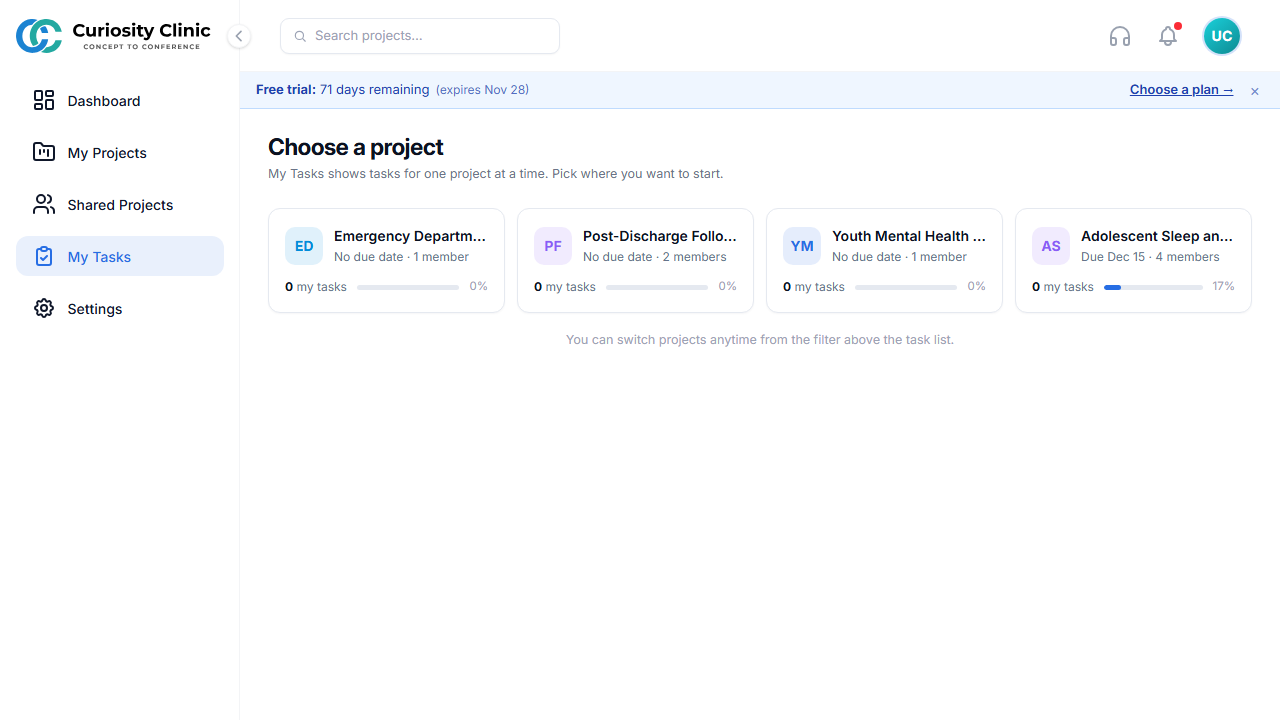 Opening My Tasks from the sidebar shows the project chooser first: My Tasks
displays one project at a time, and each card shows how many of its tasks are
yours plus the project’s overall progress. Choose a card to open the task views.
Opening My Tasks from the sidebar shows the project chooser first: My Tasks
displays one project at a time, and each card shows how many of its tasks are
yours plus the project’s overall progress. Choose a card to open the task views.
There are three ways in, and they differ in what you land on:
How you get there |
What opens |
|---|---|
My Tasks in the sidebar |
The project chooser shown above |
A project’s Tasks button (on the project’s own page) |
That project’s tasks directly, with the chooser skipped |
The Dashboard’s My Tasks panel, or its Tasks Due This Week / Completed Tasks stat cards |
Every project at once, rather than a single one |
Once a project is open, the project chip next to + Add task switches to a different project without going back to the chooser, and selecting My Tasks in the sidebar again returns you to the chooser. Whenever the chip is scoped to one project, a Go to Project button appears next to it and opens that project’s own detail page — it’s hidden while browsing every project at once.
Switching between the four views
The tab strip under the My Tasks heading — List, Board, Timeline, Calendar — switches views. The tabs can be dragged into a different order, that order is remembered in your browser, and the page opens on whichever tab sits first, so the view you use most can become the one you always land on.
Whatever the view, the controls above it stay the same: + Add task, the project chip, and Filter / Sort (the Calendar offers Filter only). The count beside the heading — “5 active” — is the number of unfinished tasks in the current project.
List view
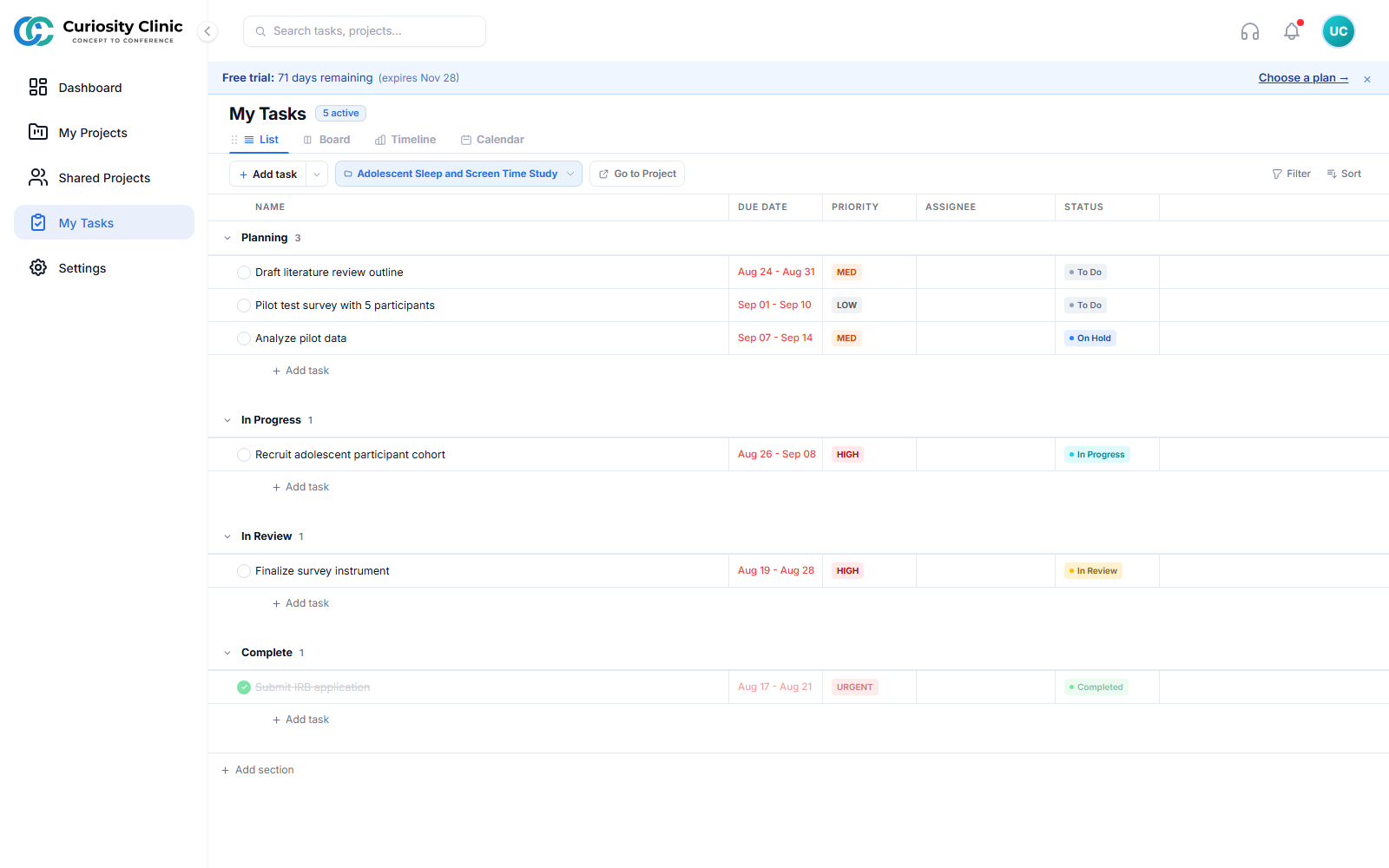 A table of every task, grouped under its section, with Name, Due Date, Priority,
Assignee, and Status columns. Completed tasks are struck through. + Add task
appears inside each section and + Add section at the bottom.
A table of every task, grouped under its section, with Name, Due Date, Priority,
Assignee, and Status columns. Completed tasks are struck through. + Add task
appears inside each section and + Add section at the bottom.
The densest view, and the best one for scanning or editing many tasks at once: each row shows a task’s full date range (start through due date) alongside its priority and status without any hovering or opening.
Board view
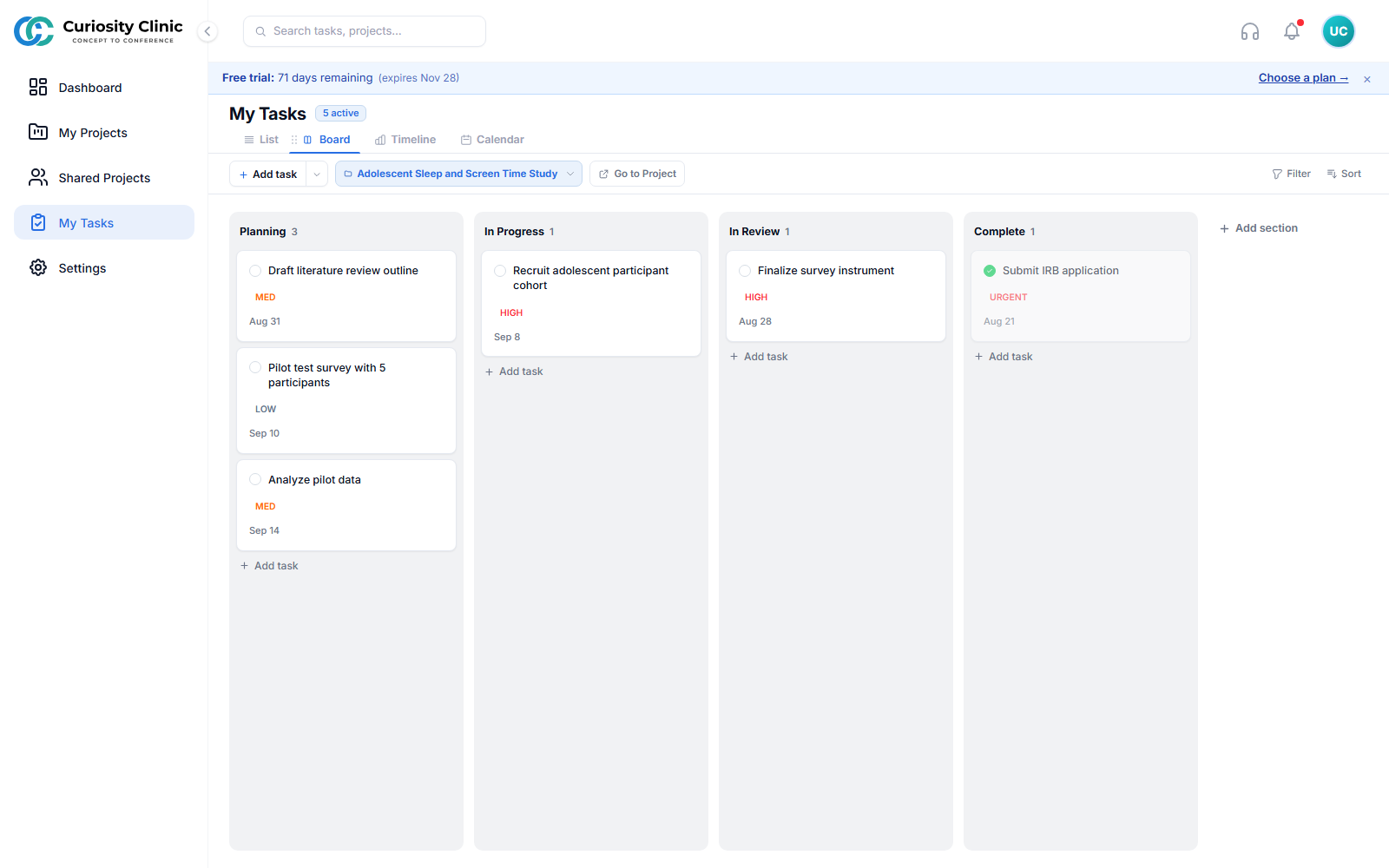 A Kanban board with one column per section — “Planning”, “In Progress”, “In
Review”, “Complete” here. Each card carries its priority and due date; drag a
card to move it between sections or reorder it within one.
A Kanban board with one column per section — “Planning”, “In Progress”, “In
Review”, “Complete” here. Each card carries its priority and due date; drag a
card to move it between sections or reorder it within one.
Note that the columns are the project’s sections, not task statuses. A section is whatever you name it, so the board’s shape is yours to decide — a status pipeline, as above, or phases, work streams, or anything else. + Add section at the right of the board adds a column.
Timeline view
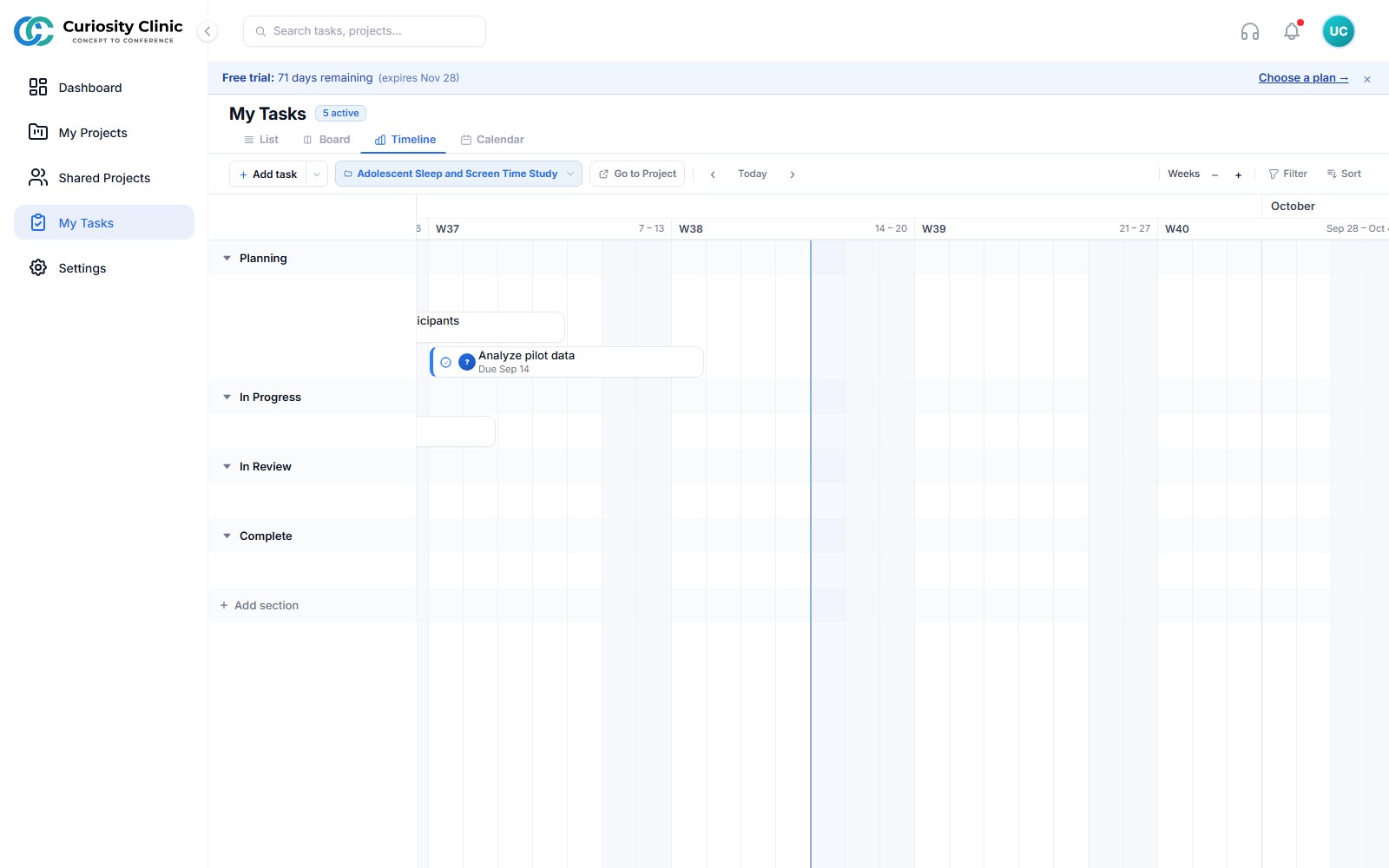 A Gantt-style schedule: sections down the left, a date grid across the top, and
one bar per task running from its start date to its due date. The vertical line
marks today.
A Gantt-style schedule: sections down the left, a date grid across the top, and
one bar per task running from its start date to its due date. The vertical line
marks today.
This is the view for seeing how the work sits against the calendar — what overlaps, what is about to start, and what has slipped behind today’s line.
A task with no start date is drawn as a single-day bar on its due date. Tasks with no dates at all cannot be placed on the grid, so they are kept in a No date (n) chip in the toolbar — select it to list them.
− and + change the zoom between Days, Weeks, and Months; ‹ Today › steps the visible window back and forward.
Selecting an empty spot in a section’s row starts a new task dated to the column you picked, so work can be scheduled straight onto the grid.
Calendar view
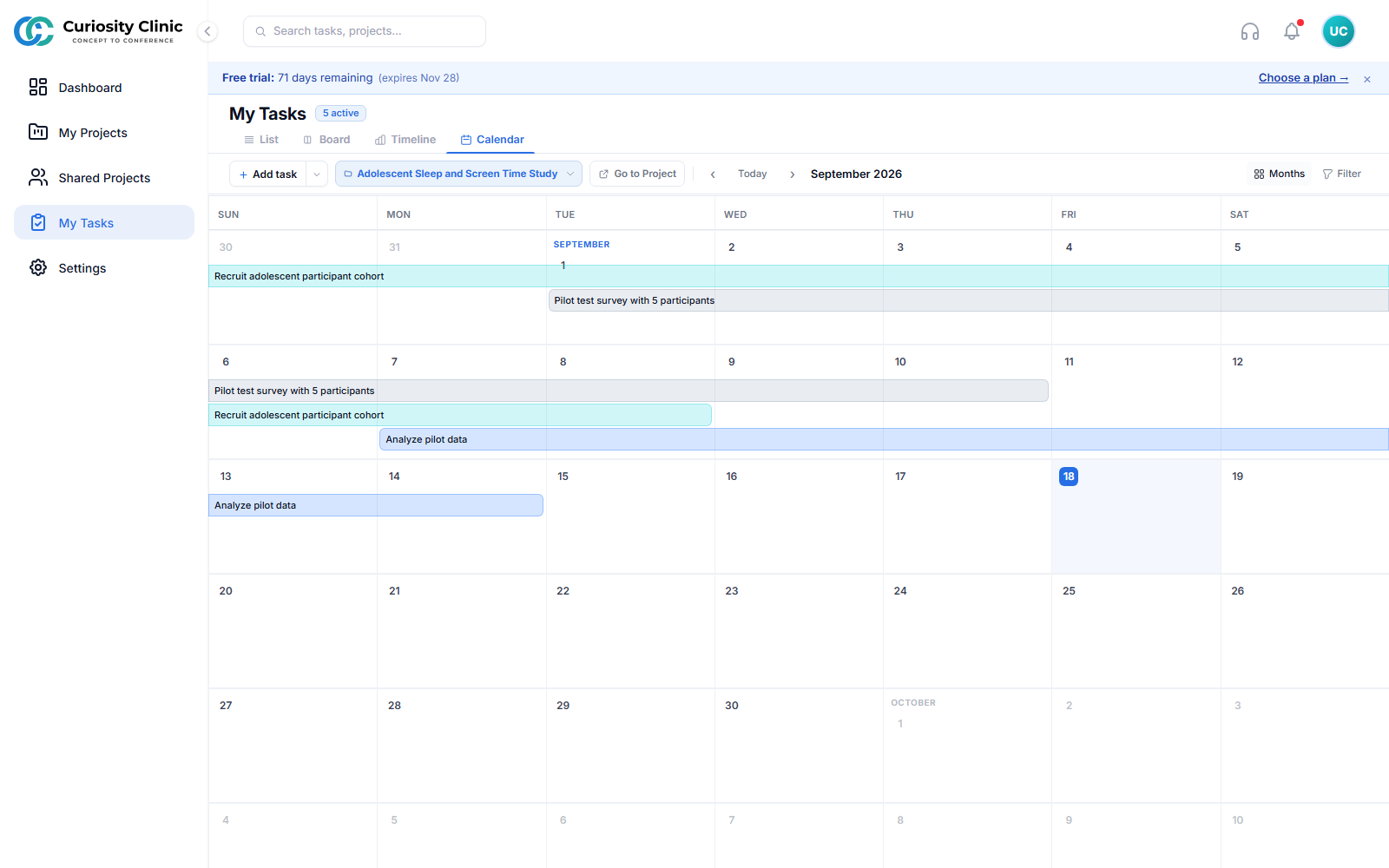 Tasks laid out on a calendar, each spanning from its start date to its due date.
Today is highlighted. The Weeks / Months toggle switches between a single-week
strip and the month grid shown here.
Tasks laid out on a calendar, each spanning from its start date to its due date.
Today is highlighted. The Weeks / Months toggle switches between a single-week
strip and the month grid shown here.
The Calendar opens on the week strip — the closest view to “what am I doing this week” — and toggles to the month grid for a fuller picture. ‹ Today › moves between weeks or months.
What each role can do here
Owners, Admins, and Members can create, move, assign, and complete tasks and sections in every view. A Guest can open all four views and read everything in them, but cannot create or update tasks and sections; those controls are disabled with a tooltip explaining why (“Guests cannot create tasks”). Deleting a task is reserved for Owners and Admins.