Projects
Screen |
Route |
Purpose |
Key Actions |
|---|---|---|---|
Projects |
|
Every project you can reach — the ones you created and the ones shared with you, in one list |
Create Project (opens the Create Project wizard: info → invite collaborators → Create Project); Show filter (All projects / My projects / Shared projects); edit status/dates inline (Owner/Admin) |
Project Overview |
|
Project summary and research setup journey |
Tasks (deep-link), Delete Project, Edit Project (both Owner/Admin-only, disabled with a tooltip otherwise); + Add Collaborator |
Project Settings |
|
Project-level configuration |
Owner/Admin-only edits |
Availability |
|
Weekly availability grid for the signed-in member |
Save changes |
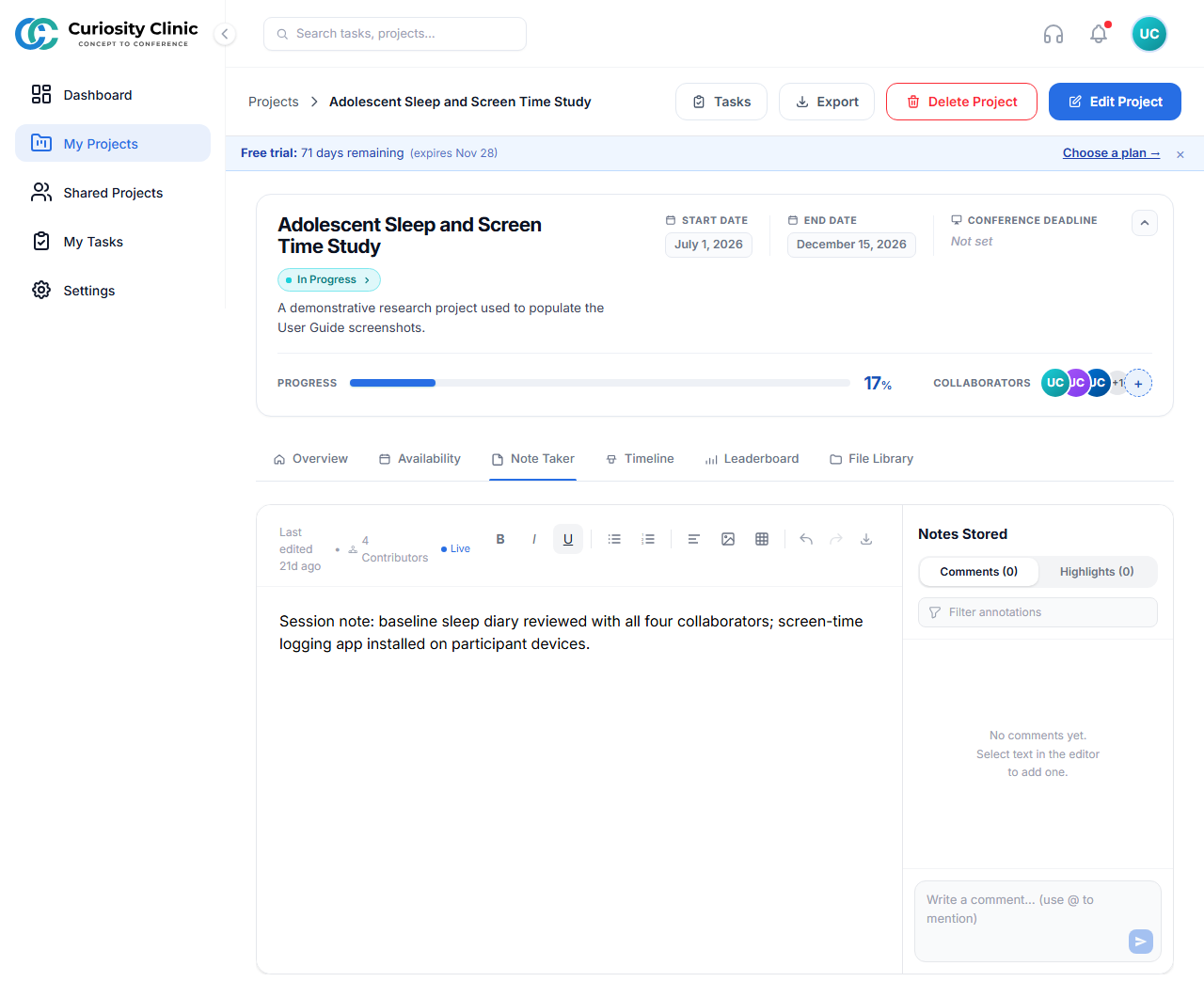
Note Taker |
|
Collaborative project notes |
Create/edit notes |
Timeline |
|
Project activity feed, filterable by contributor |
Filter by actor (via the Leaderboard’s “View Activity” link) |
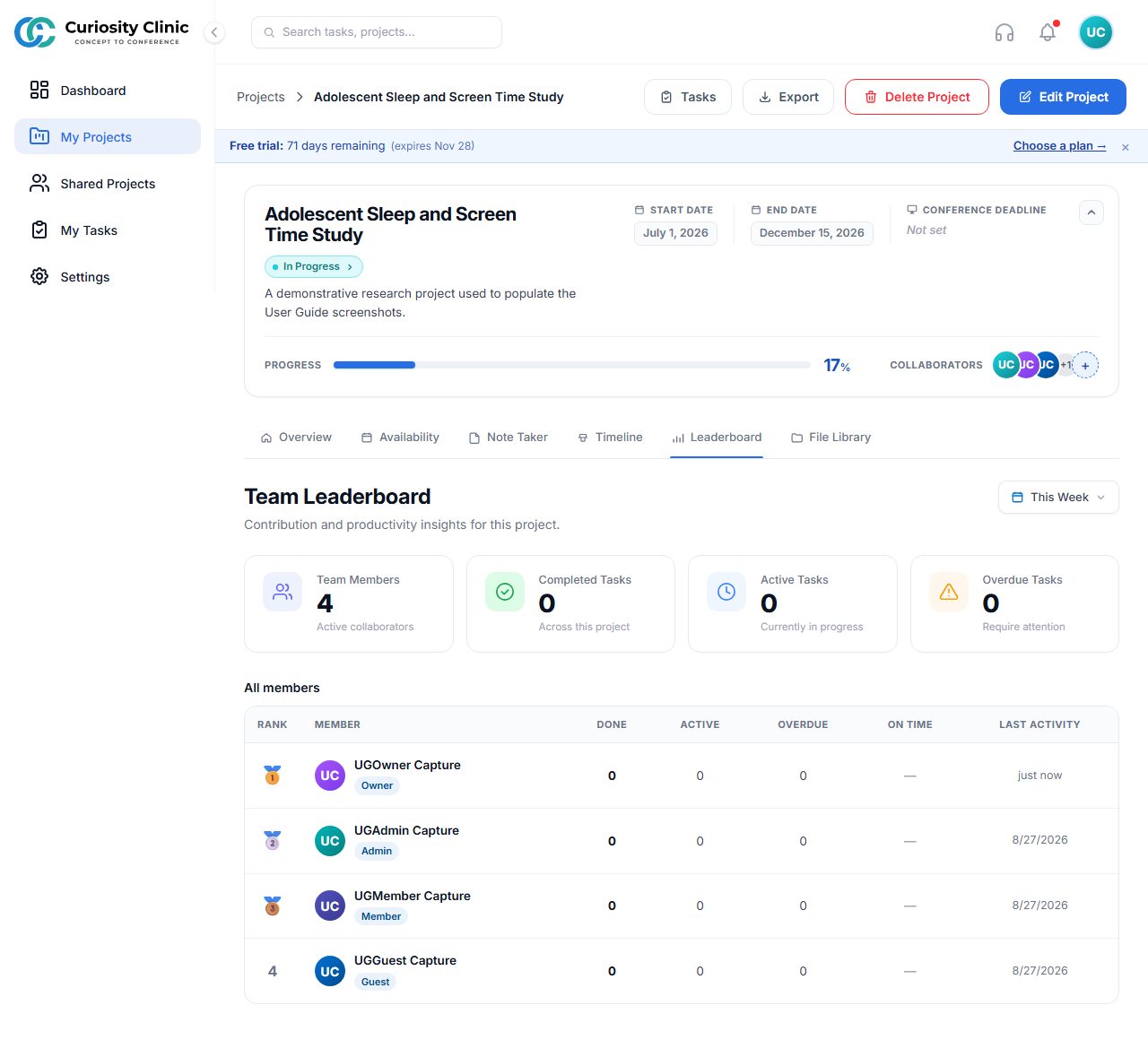
Leaderboard |
|
Contributor activity ranking |
Open a contributor’s activity |
File Library |
|
Every file attached to the project’s tasks, in one place |
Search by file, task, or author; filter by upload date; download; jump to the source task |
Literature |
|
Literature review workspace |
Not yet available — hidden from the tab bar; the URL shows a “Coming Soon” placeholder |
Note
Project screens are organized as tabs on a single page (selected via a ?tab= parameter) rather than separate pages — use the tab bar on the Project Overview screen to switch between Overview, Availability, Note Taker, Timeline, Leaderboard, and File Library. Task management for a project happens through My Tasks (see Dashboard and Core Navigation), reached via the Tasks button in the project header.
Note
The Conference Deadline column on the Projects list shows the submission deadline of a project’s linked conference (via Target Conference) — it is not the project’s own Start/End date. A project not linked to a conference, or linked to one with no submission deadline set, shows “No deadline” here even if its own Start/End dates are filled in. The Deadline filter (Any / Upcoming / This week / This month / Overdue), alongside Status and Conference, filters on this same conference-deadline value.
Project Overview
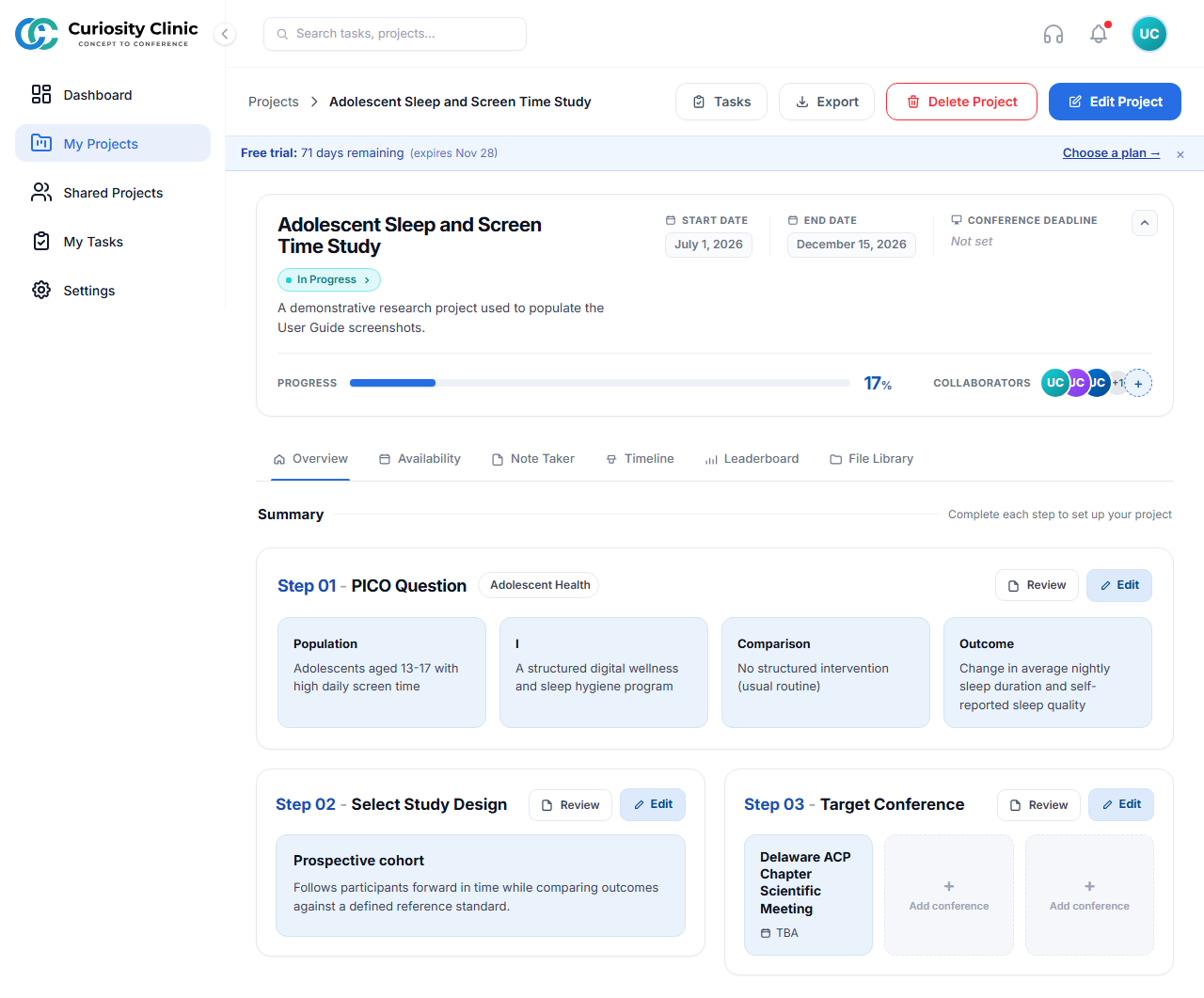 Shows the project header, progress bar, collaborator avatars, and the research setup journey (Step 01: Define Research Question, with Review/Edit actions).
Projects List, then the same list with Show set to Shared projects
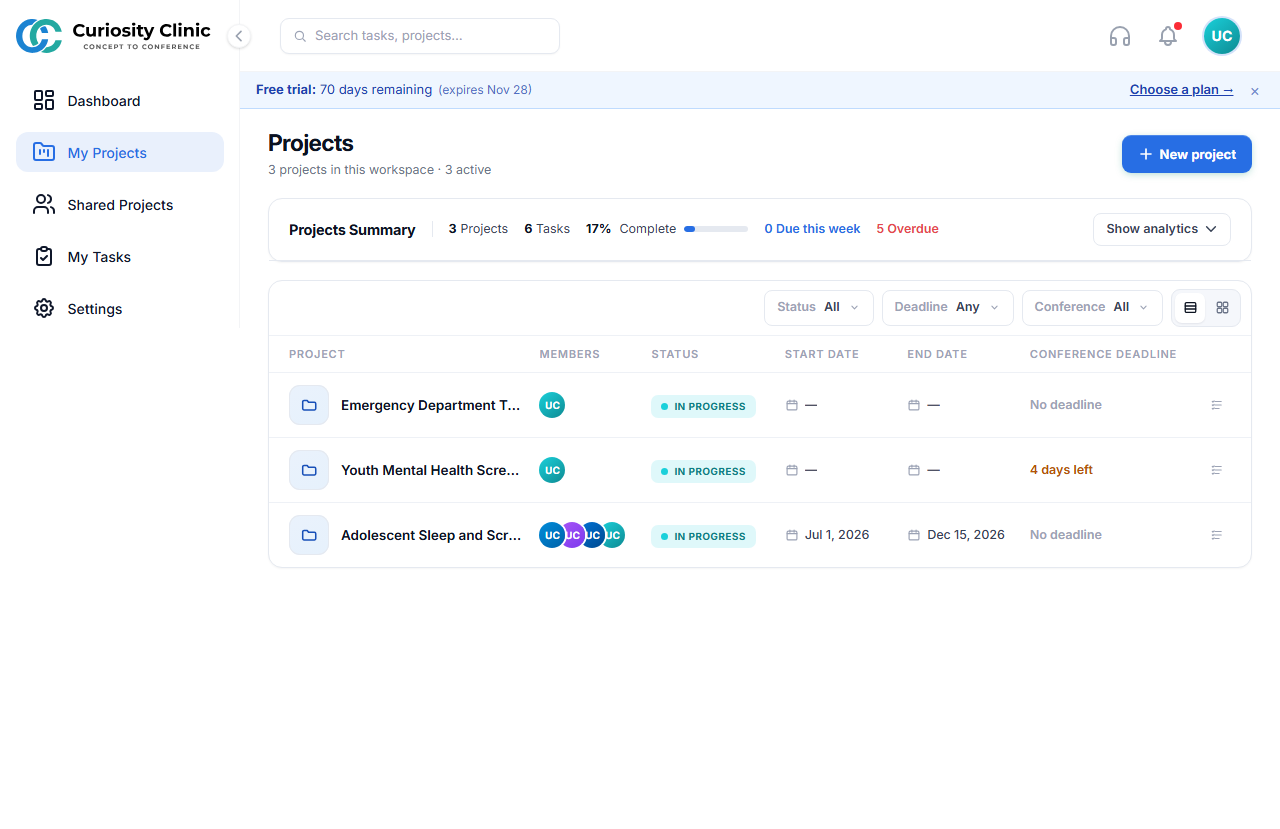
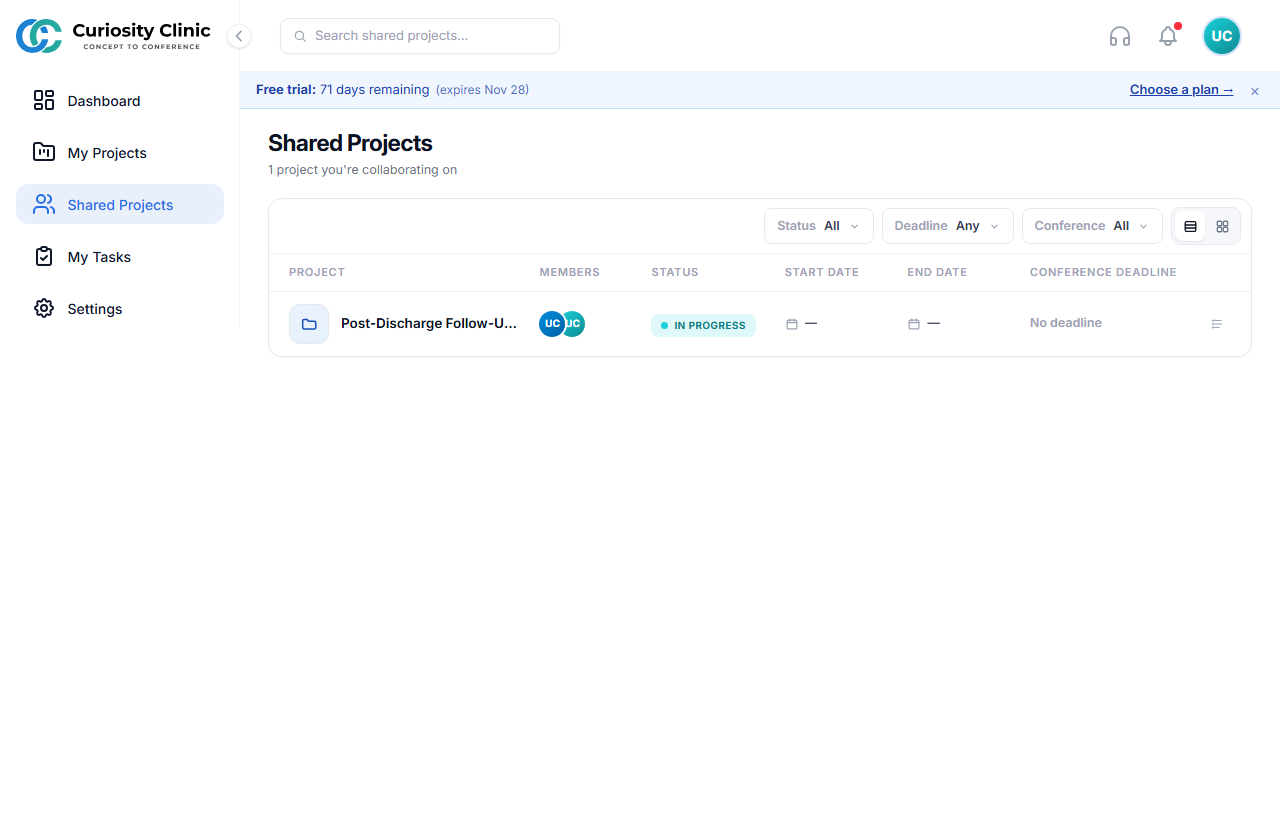 Each row’s Conference Deadline column counts down to that project’s linked conference submission deadline (“4 days left” above), not the project’s own End Date — see the note above. The Members column shows the project owner and every collaborator who has accepted their invitation — including you — up to four avatars; with more members, the last slot becomes a +N count. Invitees who haven’t accepted yet don’t appear until they do. Projects shared with you carry a small members icon after their name, so you can tell them apart at a glance in the unfiltered list. The list refreshes automatically when you return to the tab, so a status change made by another member shows up without a reload.
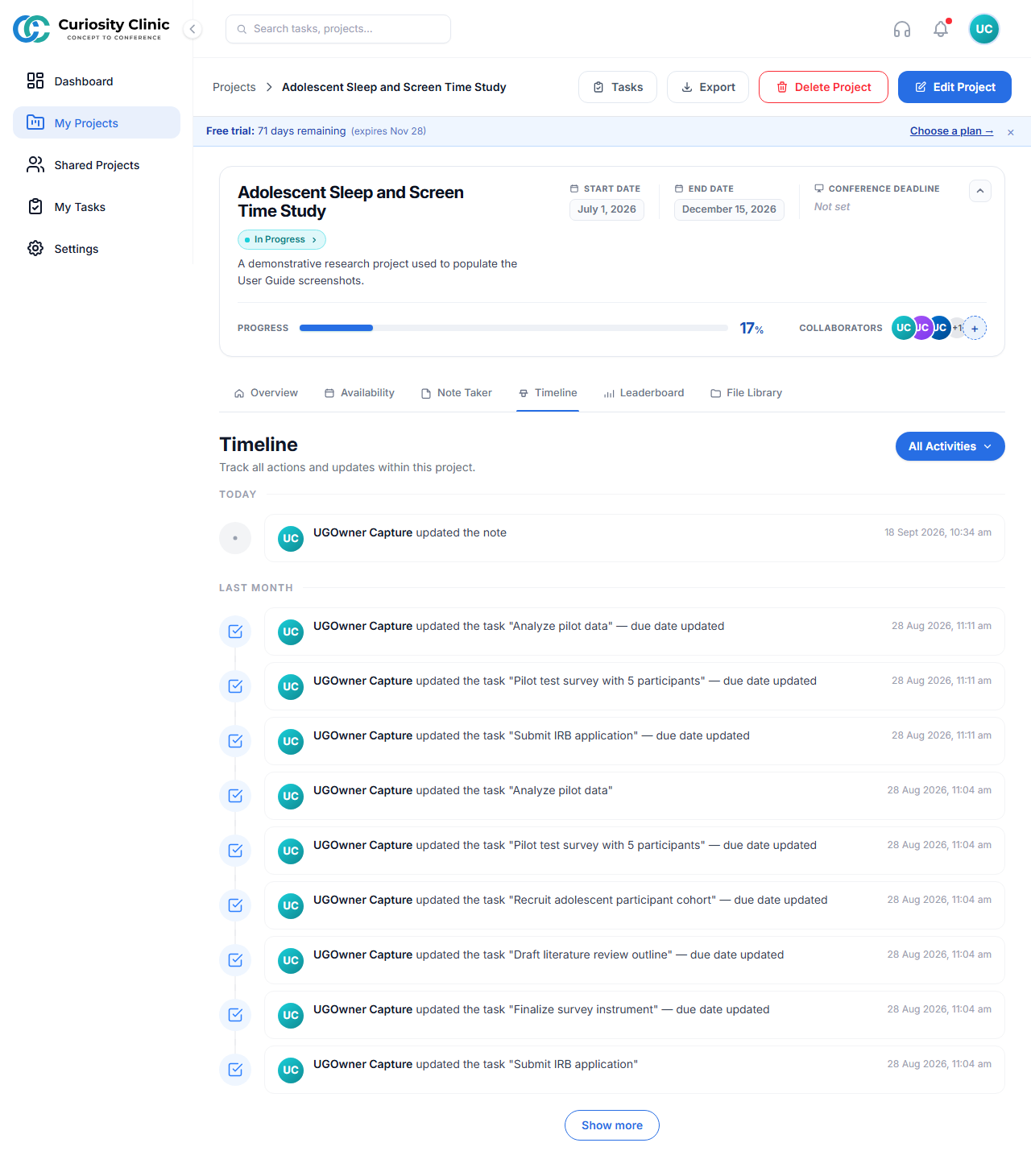
Timeline, Note Taker, and Leaderboard tabs
Availability
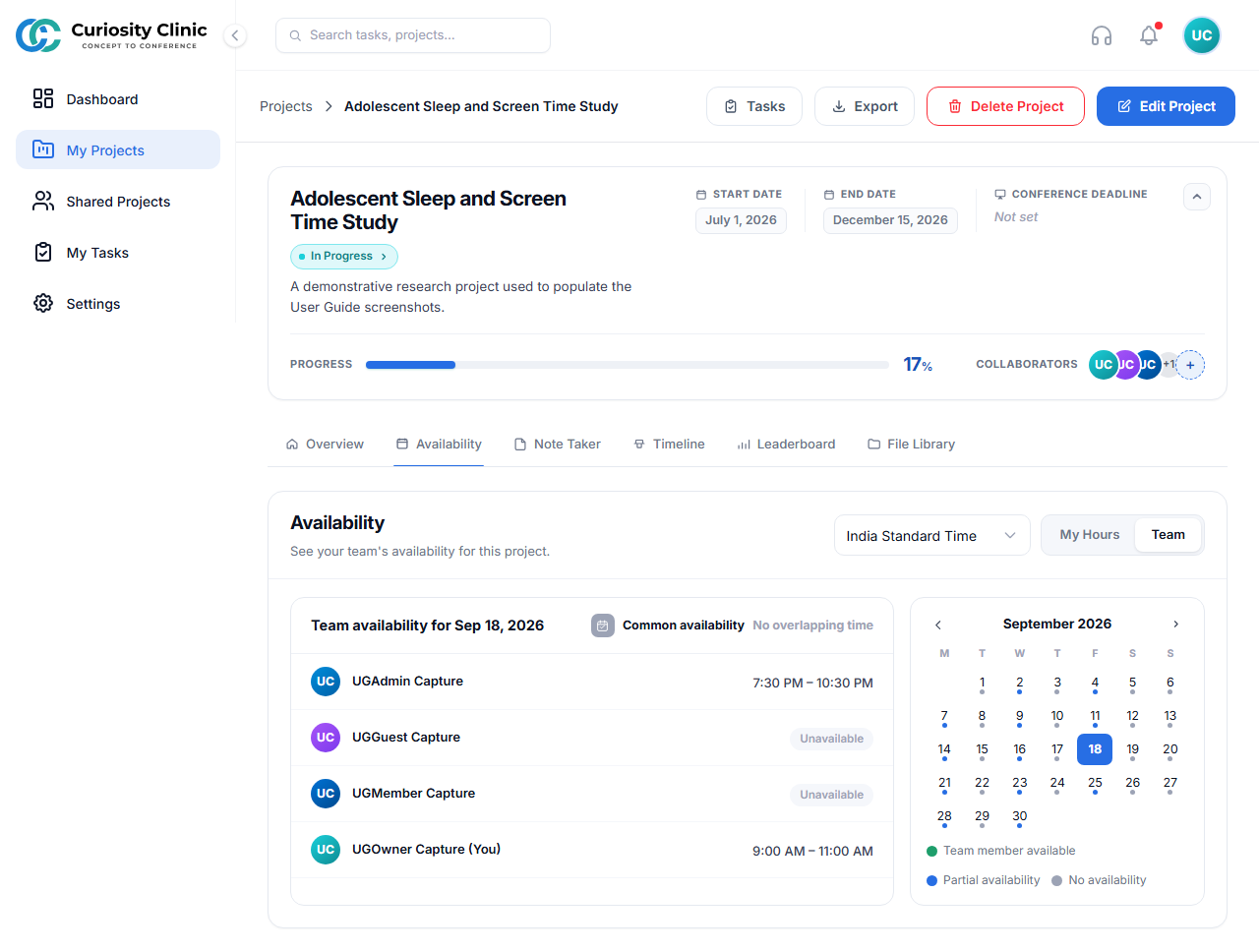 Availability intentionally re-syncs to your browser’s current timezone rather than a saved value.